









Quick Start Guide: OSMODO PRO Prebuilt
Setup time: About 5–10 minutes
Tools needed: Included screw tool
Important: Your OSMODO PRO is built for the camera version selected at checkout. Use either the DJI Osmo Pocket 3 mount or DJI Osmo Pocket 4 mount based on the version you ordered.
What You’re Installing
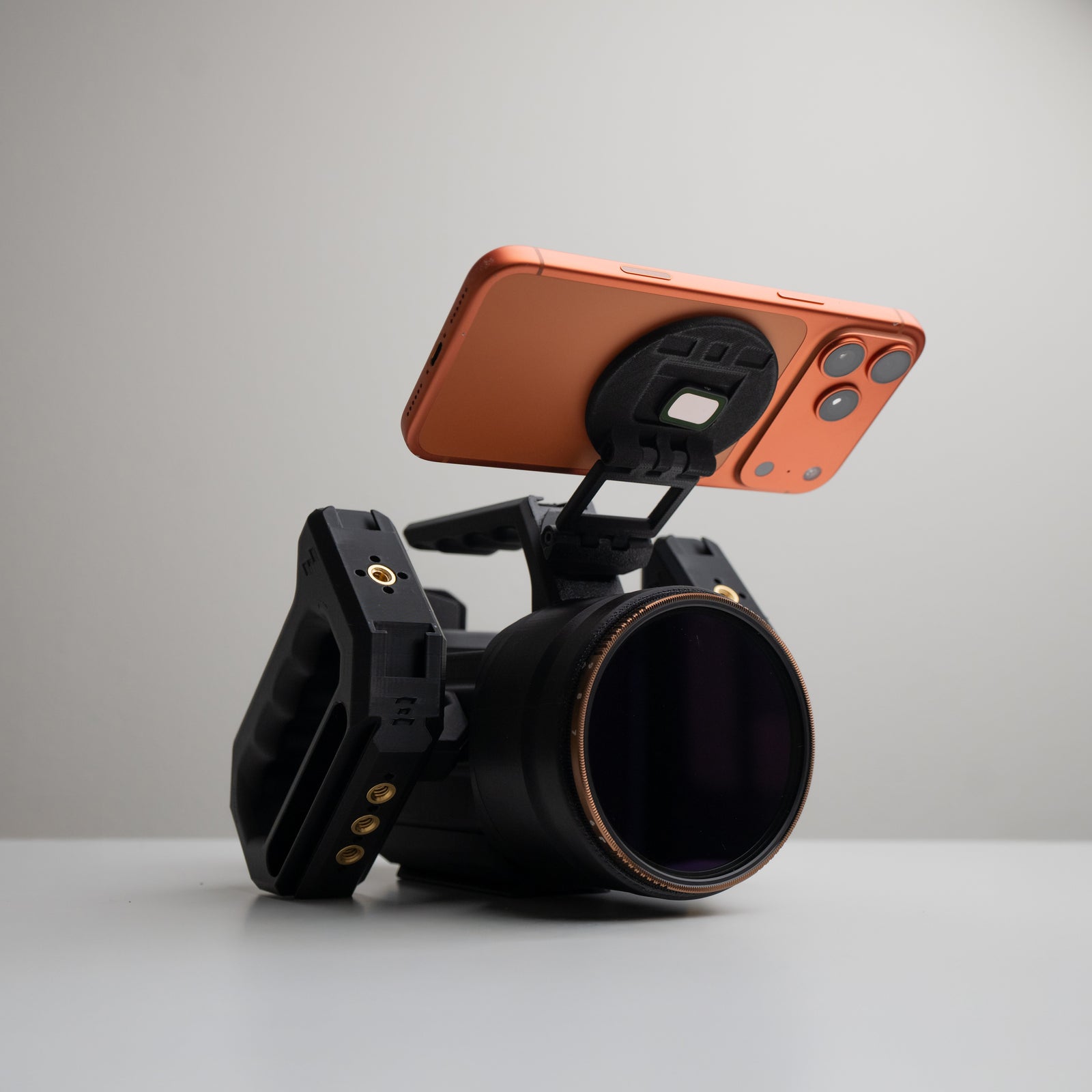
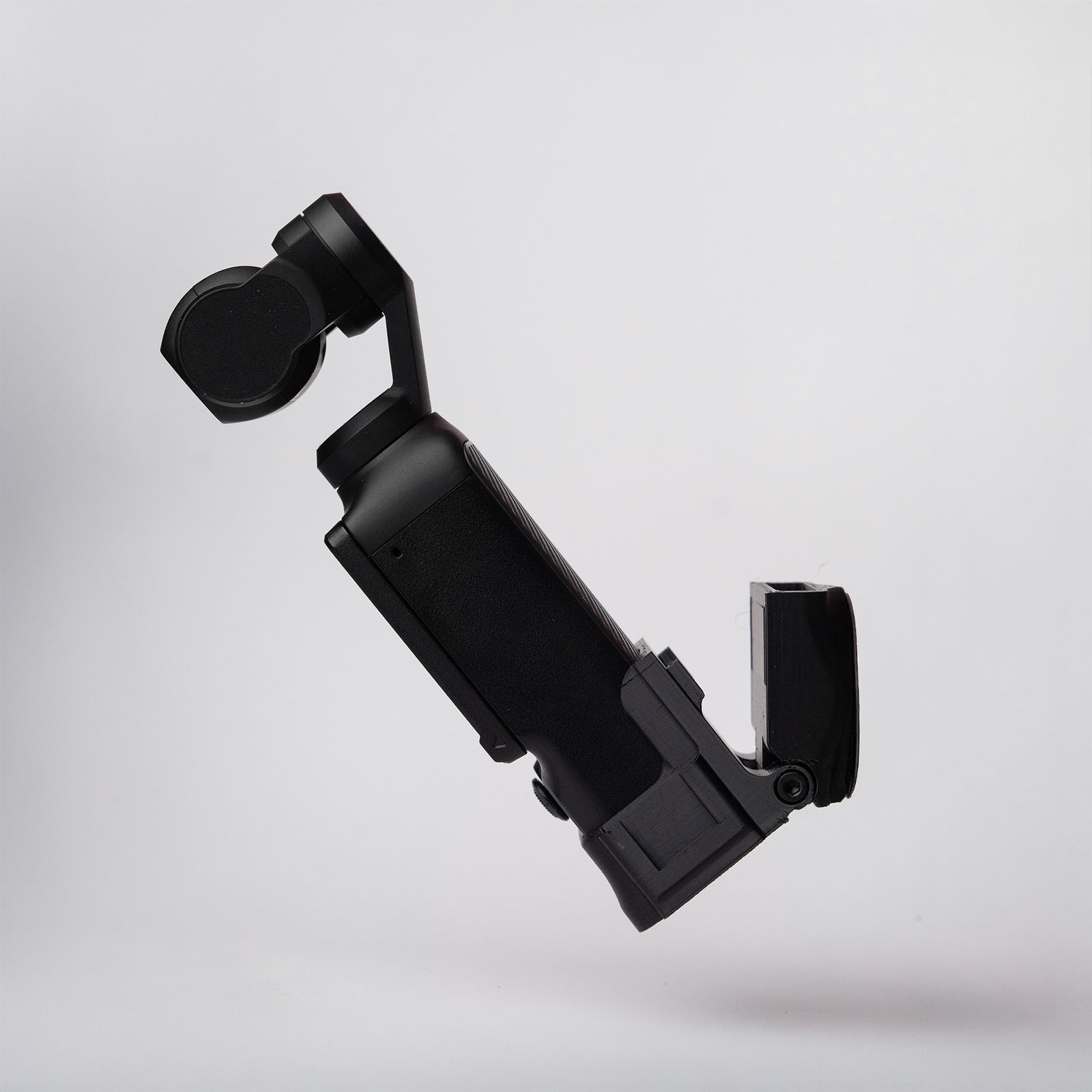
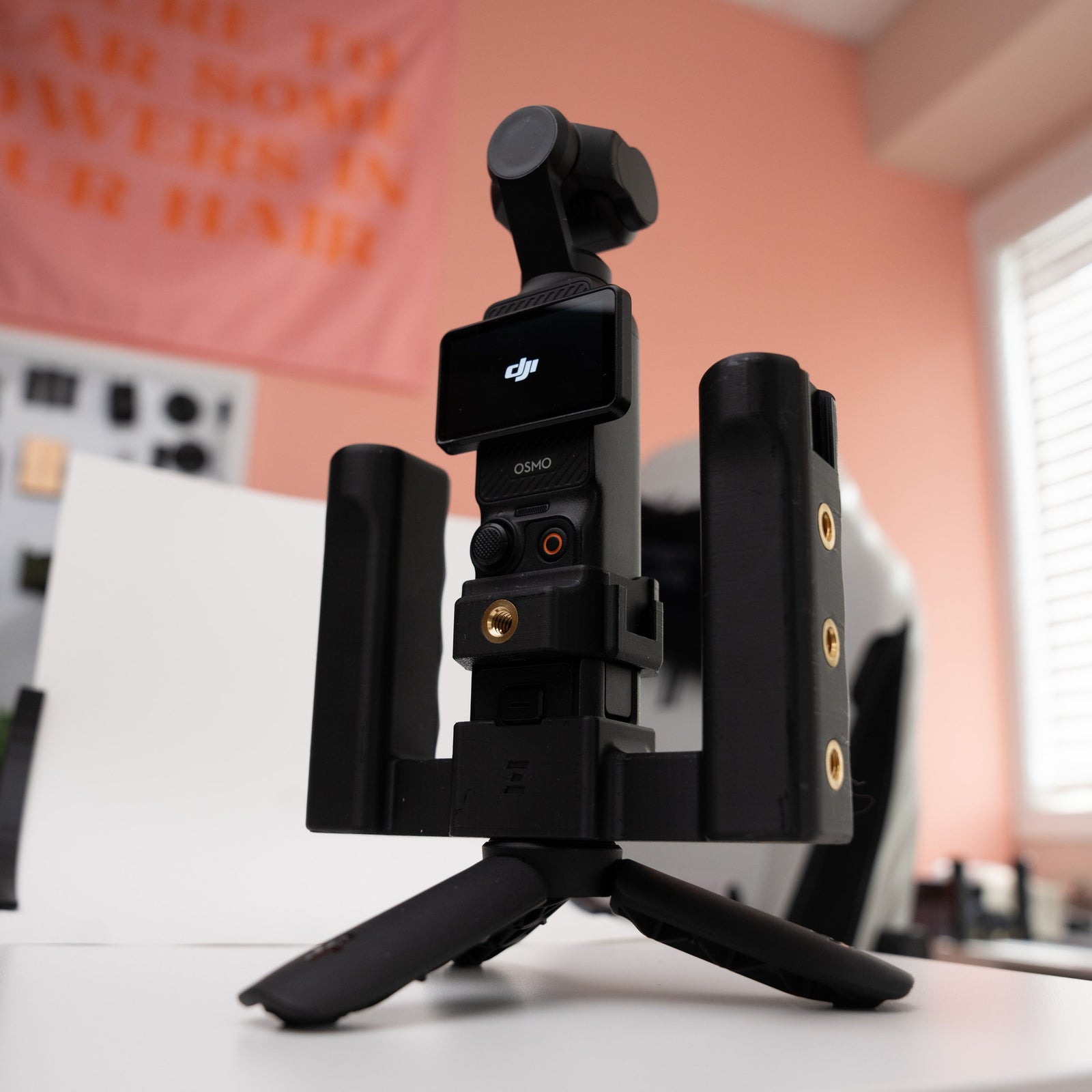
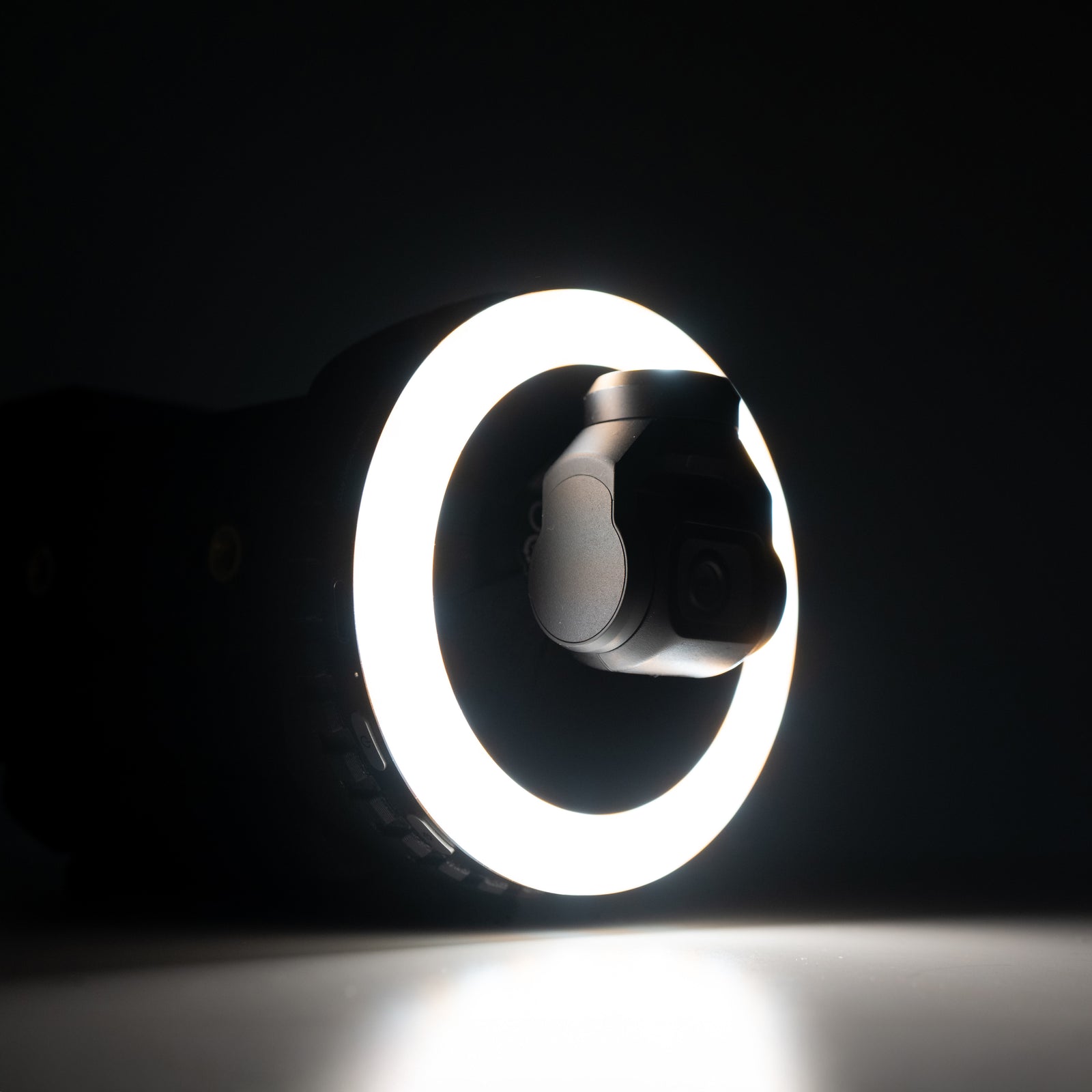
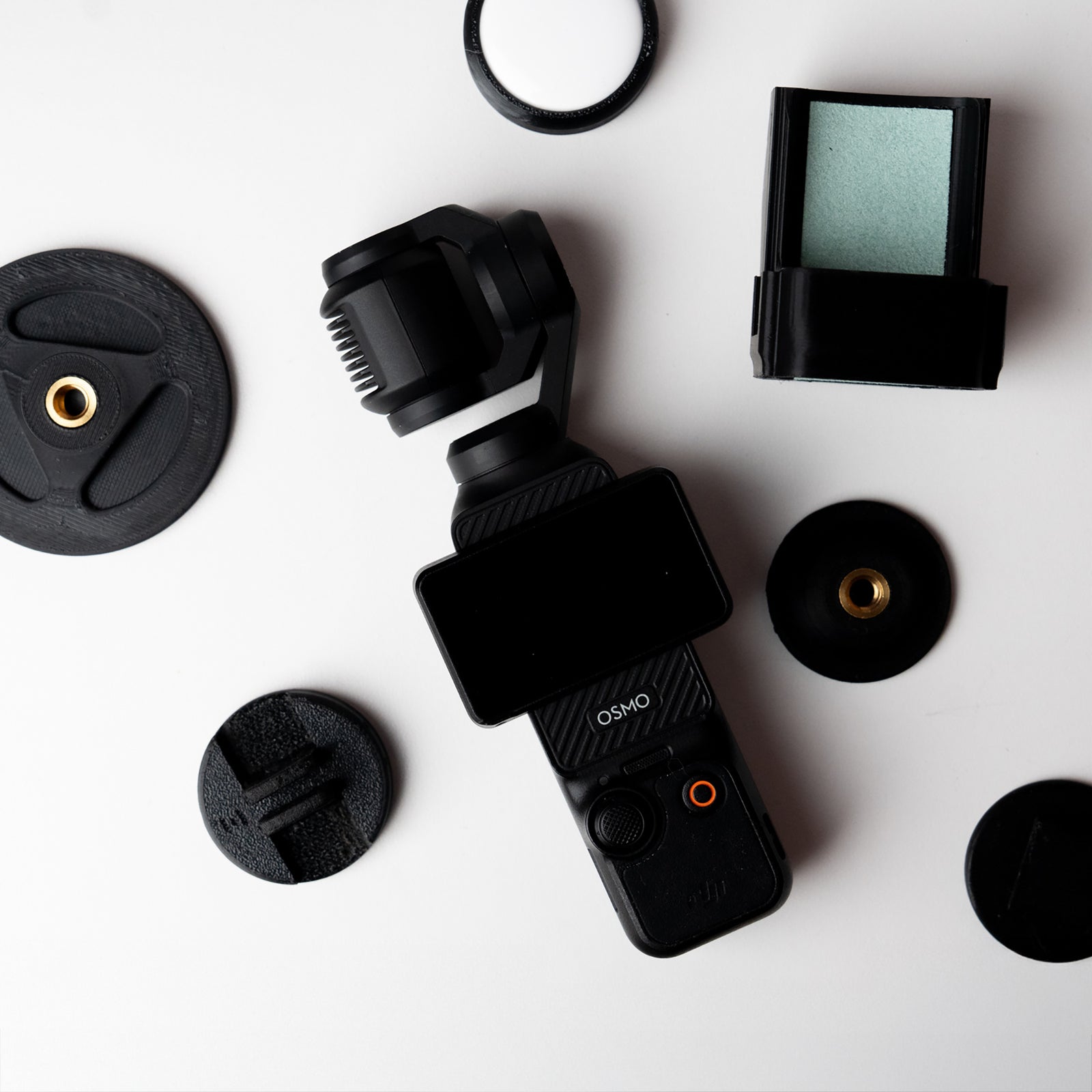
Your OSMODO PRO Prebuilt ships in travel mode to help prevent damage during shipping. Before use, you’ll install your DJI Osmo Pocket camera, screen cover, USB-C cable routing, phone mount, NPF battery plate, and battery.
In the Box
- OSMODO PRO Housing with internal hood
- OSMODO 95mm Lens Module with 82mm threading
- OSMODO Back Cover PRO
- OSMODO Camera Mount
- OSMODO Base Plate
- OSMODO Top Handle (Support Top Handle on newer versions)
- OSMODO PRO Screen Cover
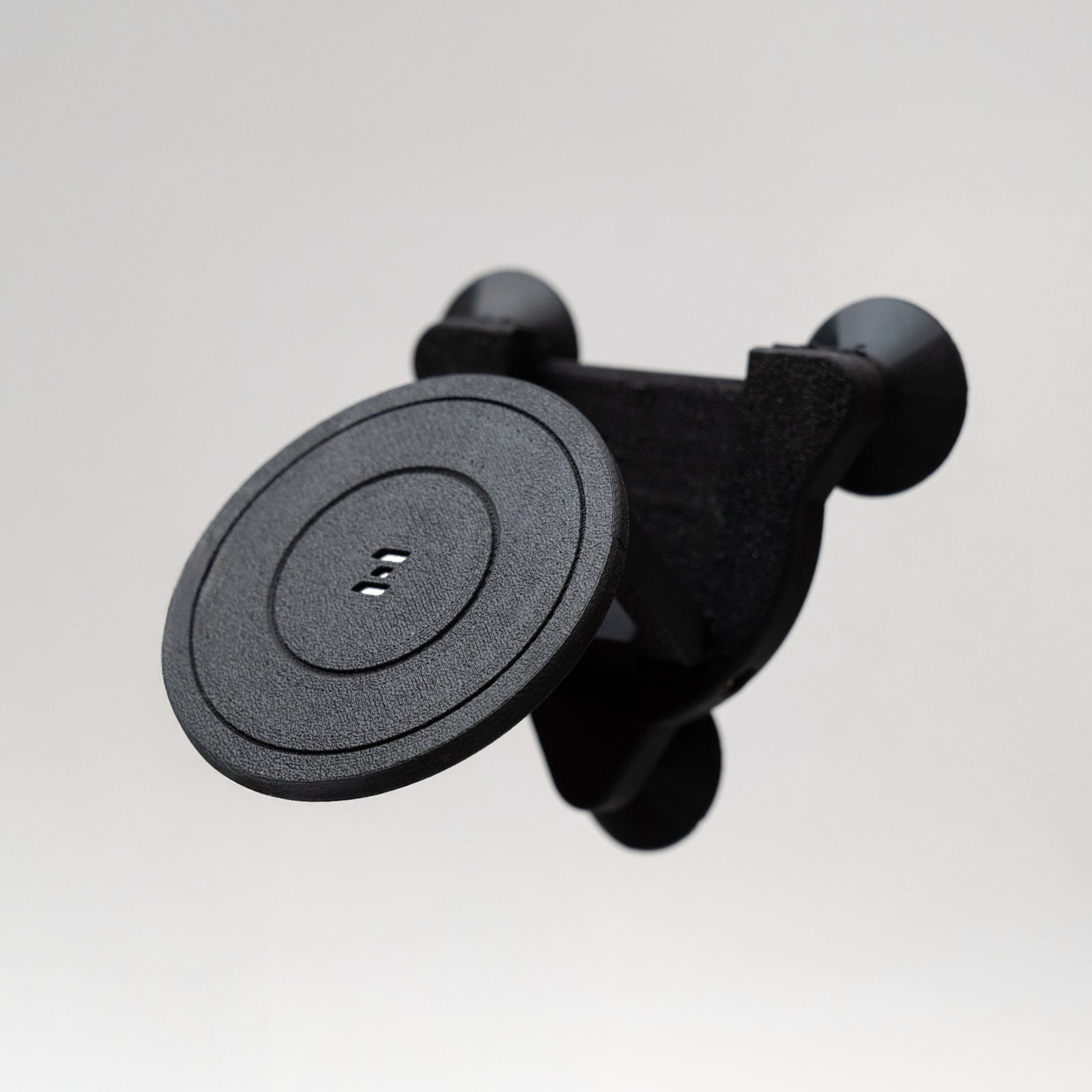
- MagDock 1/4-20 MagSafe Phone Mount
- SmallRig 1/4-20 NPF Battery Plate
- NPF Battery
- 2x optional M3 baseplate screws
- USB C Cable
- Screw kit + tool
Before You Begin
- Make sure you are using the correct DJI Osmo Pocket camera for your chosen OSMODO PRO version.
- Power off the camera before installing it.
- Remove any straps, bulky cables, or accessories from the camera.
- Wipe the camera lens clean before installing.
Important: Install the DJI Osmo Pocket camera first. The OSMODO PRO Screen Cover is installed after the camera is already seated in the housing.
Setup Steps
1. Remove the Back Cover PRO
Remove the two screws from the Back Cover PRO.
If your rig shipped with the Support Top Handle already installed, remove the rear 1/4-20 screw from the Support Top Handle so the back cover and cartridge can be removed.
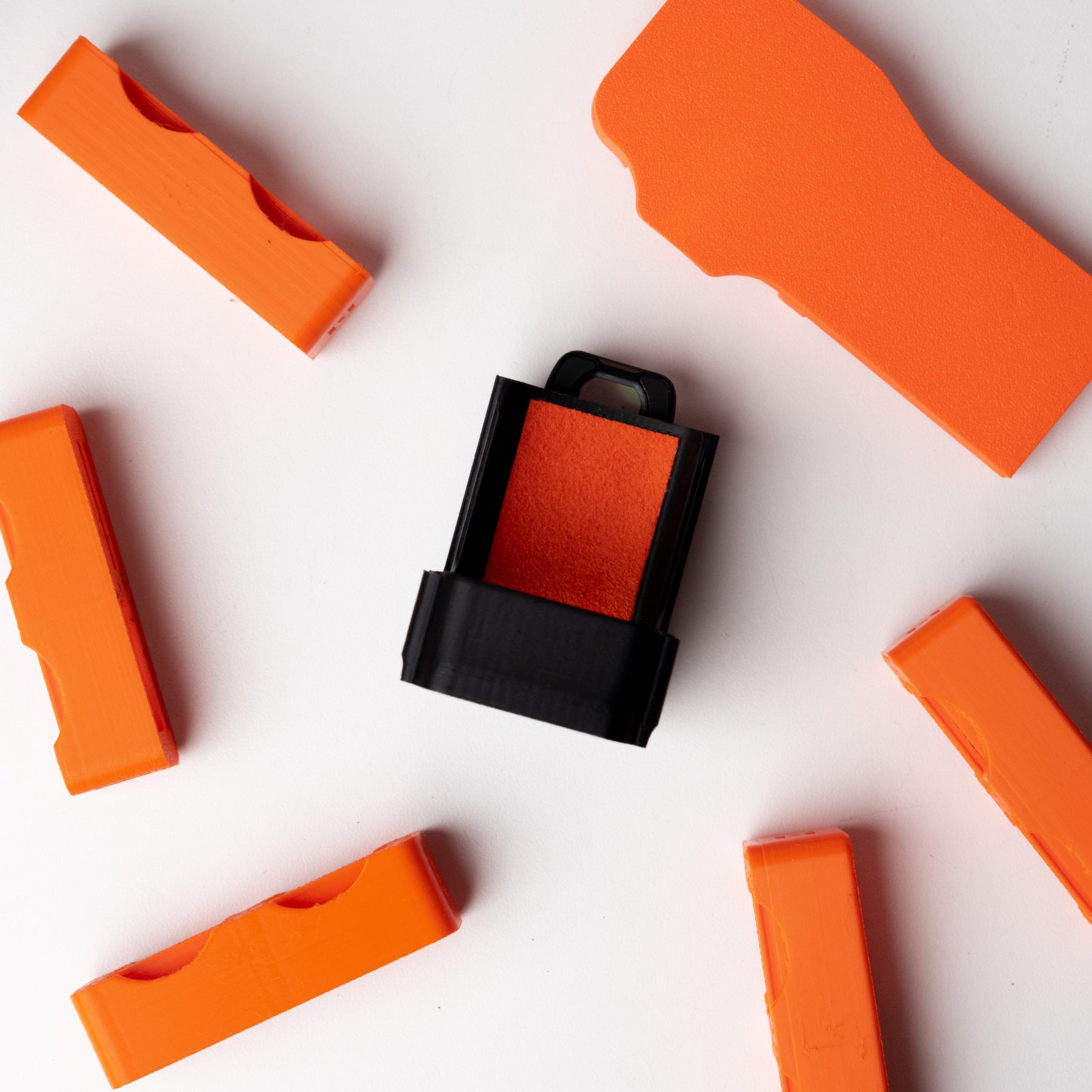
2. Remove the Camera Mount Cartridge
Slide the camera mount cartridge out of the OSMODO PRO housing.
3. Install Your DJI Osmo Pocket Camera
Place your DJI Osmo Pocket camera into the cartridge and press it in firmly and evenly until it is fully seated against the soft fabric pads.
Make sure the camera is pushed all the way down into the mount. This allows the screen to rotate freely without rubbing.
4. Slide the Cartridge Back Into the Housing
Slide the cartridge back into the OSMODO PRO housing until it sits flush.
5. Install the OSMODO PRO Screen Cover
Once the camera is installed, place the OSMODO PRO Screen Cover above the camera screen.
The screen cover is designed to fall into place after the camera is seated. Squeeze to release from OSMODO Housing.
6. Route the USB-C Cable
Plug the 90-degree end of the USB-C cable into the camera through the housing.
Remove the base plate under the housing, route the USB-C cable through the bottom port, then reinstall the base plate.
7. Reinstall the Back Cover PRO
Reinstall the Back Cover PRO and secure it with the included screws.
Optional quick-removal setup: If you want easier access to remove the camera later, you can leave the two front M3 screws removed and only use the rear 1/4-20 screw from the Support Top Handle. Make sure the front tab on the Support Top Handle is attached to the housing before use.
8. Optional: Install the Extra M3 Baseplate Screws
Your kit includes 2x optional M3 baseplate screws. These can be installed on the bottom/back side of the OSMODO PRO for an even stronger connection.
These are not required for most setups, but they are recommended if you are building a heavier rig with extra accessories.
9. Attach the NPF Battery Plate and Battery
Attach the included SmallRig 1/4-20 NPF Battery Plate to the back of the Back Cover PRO.
Plug the routed USB-C cable into the battery plate, then attach the included NPF battery to power or charge the camera.
Tip: The routed USB-C cable can also be used to offload footage, so you do not need to remove the camera unless you want to.
10. Attach the MagDock Phone Mount
Screw the included MagDock 1/4-20 MagSafe Phone Mount into the front of the Support Top Handle.
This gives you a phone mount for DJI Mimo monitoring, camera control, notes, or other phone-based tools.
Recommended Camera Settings
- Set the camera to Follow Mode.
- Set Follow Speed to FAST.
- Keep the rig level while moving.
- If the camera drifts off-center, double-tap the thumb controller to re-center.
Quick Troubleshooting
- Edges showing in frame: Re-center the gimbal, keep the rig level, or slow down your move.
- Screen rubbing: Make sure the camera is pushed all the way down and the screen cover is seated correctly.
- Gimbal error on startup: Slightly loosen any filter or front attachment, then power cycle the camera.
- Housing feels loose: Re-snug the screws with the included tool.
- Cable is in the way: Make sure the cable is routed through the bottom port and rear pass-through.
Front Filters and Matte Boxes
- 82mm filters: Thread ND, VND, CPL, diffusion, or FX filters directly into the native M82x0.75 front.
- 95mm matte boxes: Use a 95mm clamp-style matte box.
Tip: Use Fast Follow and smooth moves. If you see filter or matte-box edges, re-center and slow down.
Mounting Options
- Arca-style base for quick-release tripod mounting.
- Dual 1/4-20s on the Base Plate.
- Dual cold shoes on the Back Cover PRO.
- 5x 1/4-20 mounting points on the Back Cover PRO.
- Bottom accessory port for baseplates and future add-ons.
- Top 2x M3 accessory pattern for top handles, NATO rails, MagDock mounts, and future accessories.
Overheating Note
Under certain conditions, overheating can occur during long recordings or in warm environments. This can happen with compact cameras during extended use, especially when recording in higher resolutions, higher frame rates, or direct heat.
A fan module is available for situations where additional cooling is needed.
OSMODO PRO vs Original OSMODO
- OSMODO PRO: Open-top design with access to the thumb controller and record button. Includes Back Cover PRO and Base Plate. Compatible with OSMODO PRO accessory port accessories.
- Original OSMODO: Enclosed, stealthy design with centered 1/4-20 on top. Phone-first operation required. Not compatible with OSMODO PRO accessory port accessories.
Need Help?
Any issues or questions, please start a chat on the store and we’ll help you get set up.